XRLiteViewer is an iPad app that makes it easy to display “spatial manuals” created from 3D CAD or scan data. In manufacturing, maintenance, and training, it communicates work procedures and inspection methods intuitively through 3D.
Key Features:
Display 3D manuals with animations and annotations
Understand parts movement and structures in three dimensions
Works offline—no internet connection required
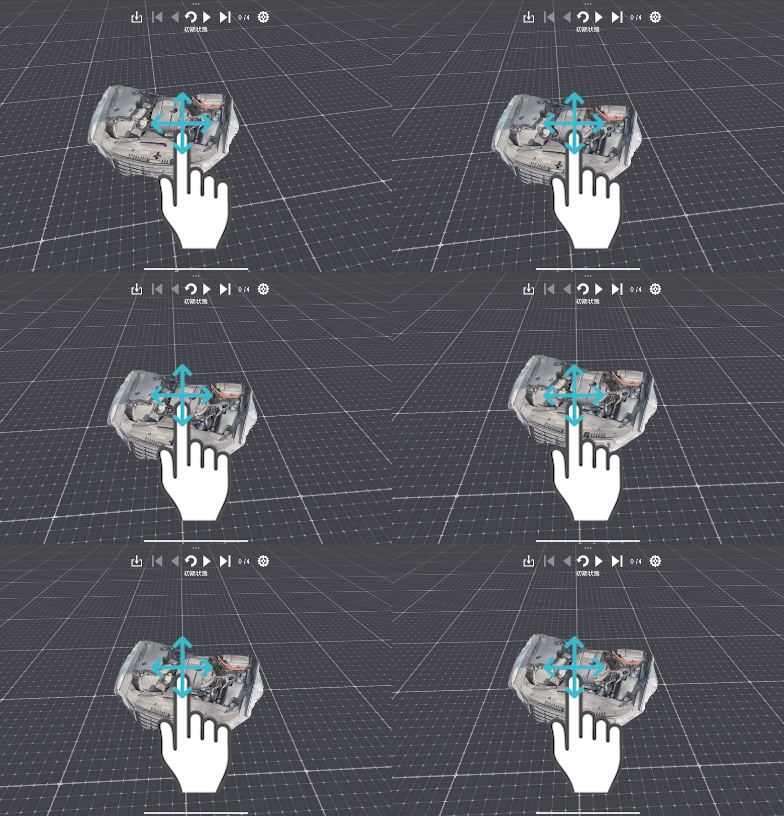
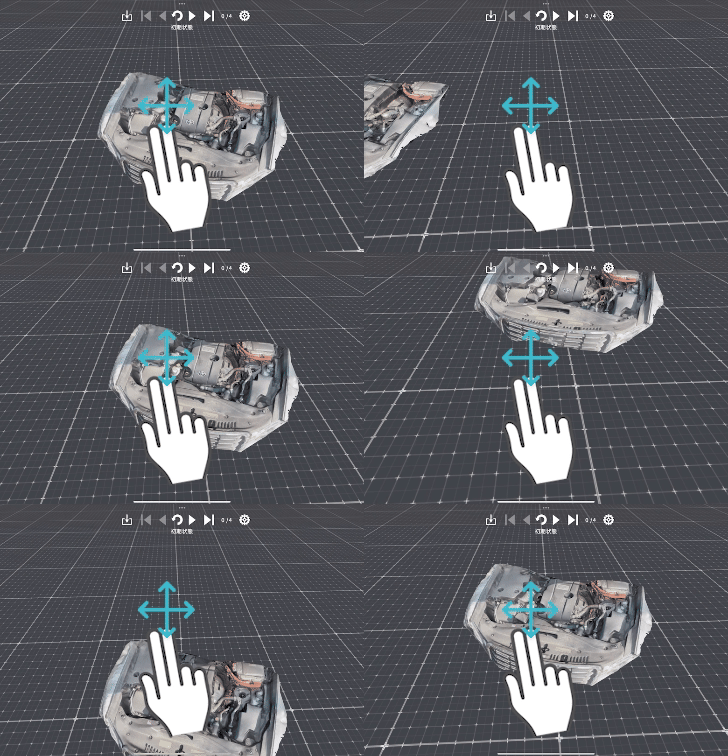
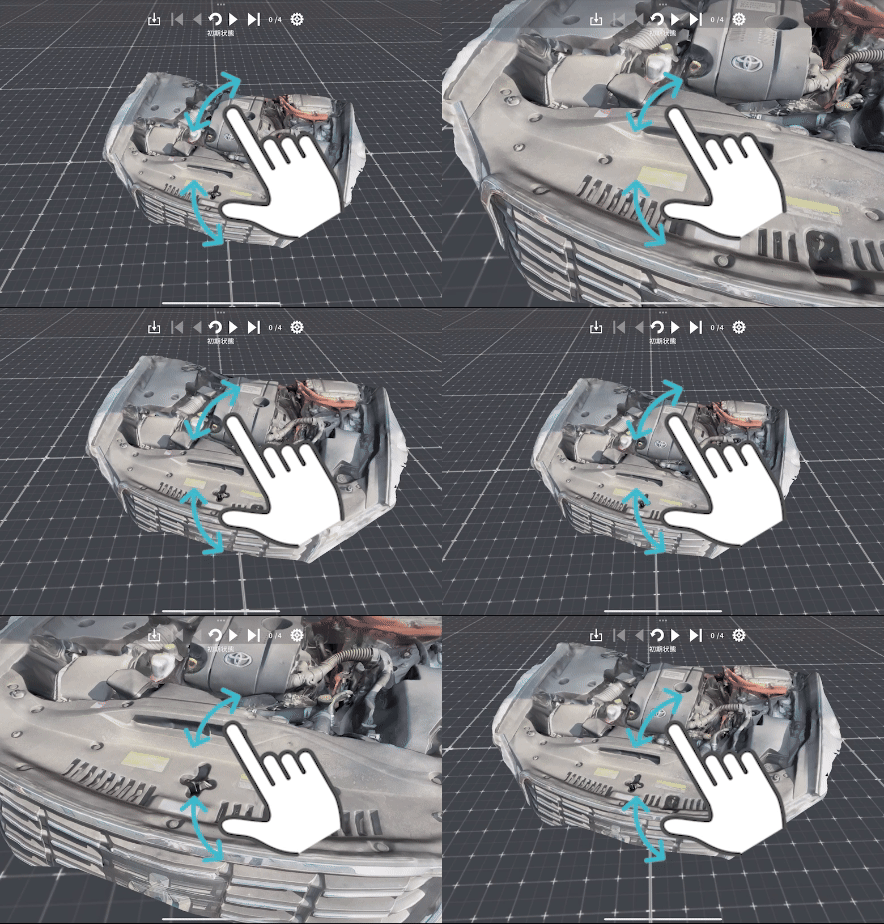
Simple operation with tap and swipe
Unlike videos, which struggle to convey “structure” and “motion,” XRLiteViewer makes them clear to anyone in 3D. Use it now for education, inspection, and work support directly in the field.
Note: Content for XRLiteViewer must be created with XRLiteEditor.
Running XRLiteViewer Demo Content
To run the demo content, please install XRLiteViewer on your iPad in advance.
Use Sample Data
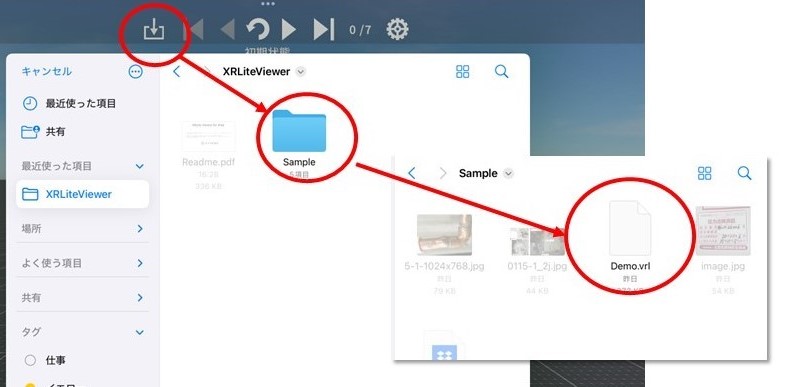
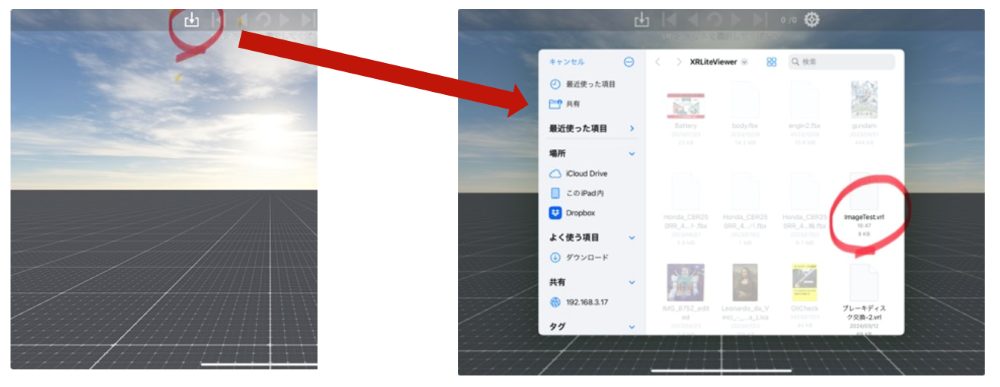
XRLiteViewer includes sample data. Tap the Load button and select:
XRLiteViewer > Sample > Demo.vrl
to display the demo content.
Viewing via Browser
Once XRLiteViewer is installed, open this page on your iPad and click the [Exec] link below. The app will start automatically and display the demo content.
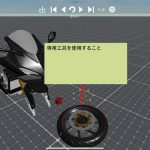
Demo: Front Brake Pad Replacement for a Motorcycle
This demo work manual loads 3D data and uses scene-by-scene color changes and object positioning to create animated instructions.
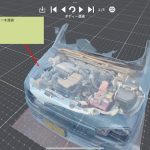
Display two Scaniverse-scanned datasets (body and engine) overlaid in the same space. By making the body transparent, the internal structure can be visualized clearly.
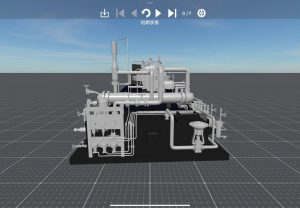
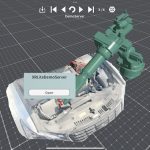
Display Scaniverse-scanned data (engine) together with 3D CAD data (robot arm) in the same space. By pressing the “Open” button on the annotation pointed to by the robot arm, a web page will open.
The Files app will open, allowing you to select a VRL file.
Deploy contents
How to register content from a Mac to an iPad
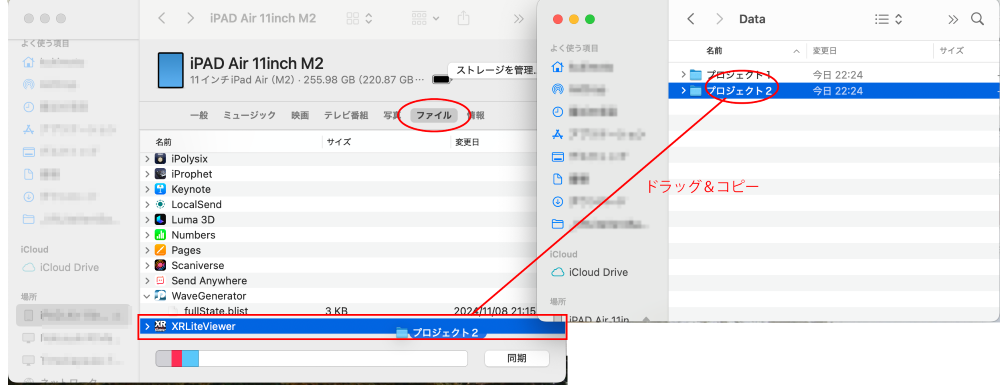
Connect the iPad to your Mac via USB.
Open the iPad from Finder.
In the XRLiteViewer folder, drag and copy the VRL file along with the folder containing the required 3D data.
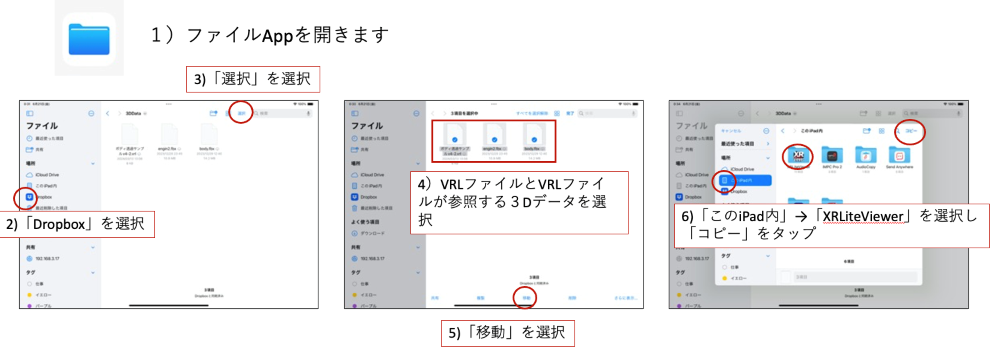
Dropboxからロードする場合
Make sure Dropbox is installed on your iPad.
Open the Files app, access Dropbox, and copy the files into the XRLiteViewer folder.”
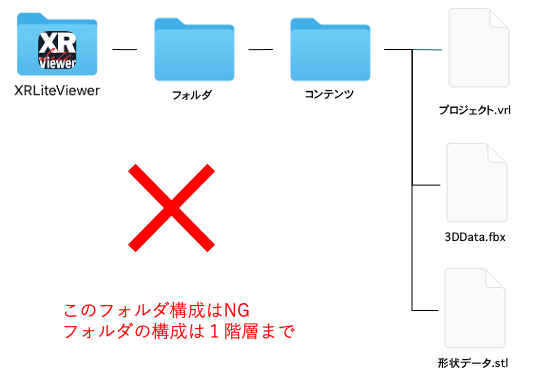
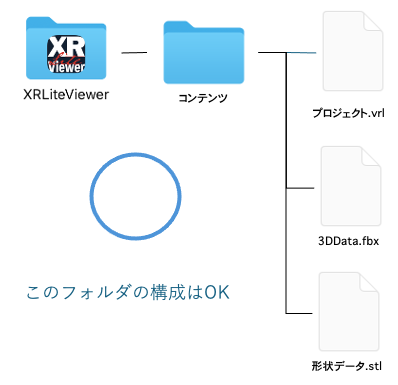
Note 1: Directory Structure
Within the XRLiteViewer folder, the hierarchy to the VRL file can only be one level deep. VRL files cannot be loaded if they are placed inside multiple nested folders within the XRLiteViewer folder. In addition, a VRL file can only reference 3D data that exists in the same folder level.
Note 2: Full Deletion of Files
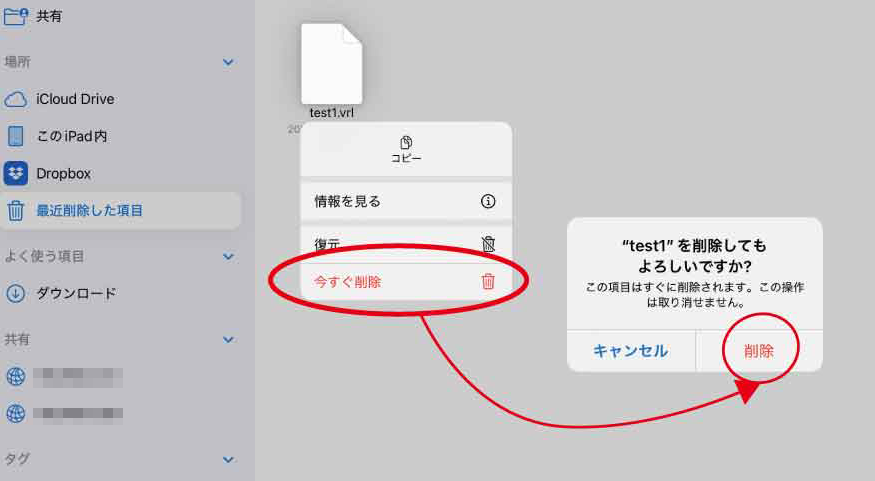
You may need to delete an old VRL file and replace it with a new one. However, even if you delete a file using the iPad Files app, it is not completely removed.
Deleted files in the Files app are moved to “Recently Deleted.” To permanently erase them, open “Recently Deleted,” select the file, tap “Delete Now,” and then confirm again by tapping “Delete.”