Digital Transformation in Maintenance through 3D Data
Display procedures and equipment info in 3D
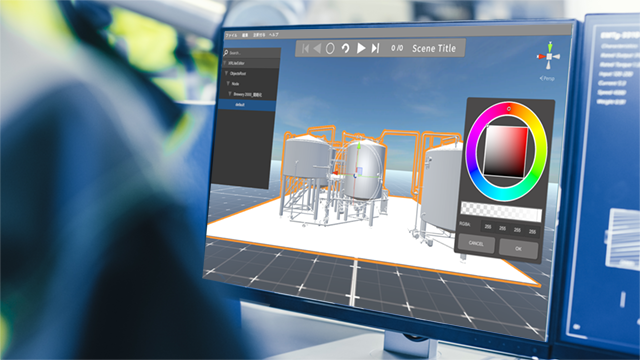
XRLite Editor allows you to easily import 3D CAD data or data captured with a 3D scanner to quickly build a Digital Twin environment. By making full use of 3D data, you can easily create maintenance procedures, training content, and maintenance records.
The clear step-by-step manuals generated from these projects reduce the workload of on-site workers, leading to shorter task times and fewer errors.
Furthermore, by recording the know-how of skilled technicians in XRLite Editor, that expertise is preserved and accumulated as organizational knowledge and skills.
With the retirement and decline of skilled technicians, skill transfer has become essential.
As equipment lifespans grow longer, regular inspections and maintenance are required, but the know-how for these tasks often depends on specific individuals.
Complex, difficult-to-read manuals make it hard to find the necessary information, creating challenges for understanding on-site.
Benefits of Implementation
Even inexperienced workers can perform tasks more reliably by following manuals created with XRLite Editor, reducing their workload.
Knowledge and experience can be formalized and shared through XRLite Editor, contributing to the overall skill enhancement of the organization.
Instructions become clearer through 3D data animations, reducing misoperations and errors.
Opperation
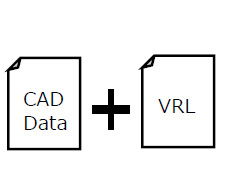
Build your projects (*.vrl files) in XRLite Editor
Keep your 3D data and VRL file in the same folder.
ntegration with CMMS and maintenance systems for more efficient inspection, recording, and management.
Work Procedure
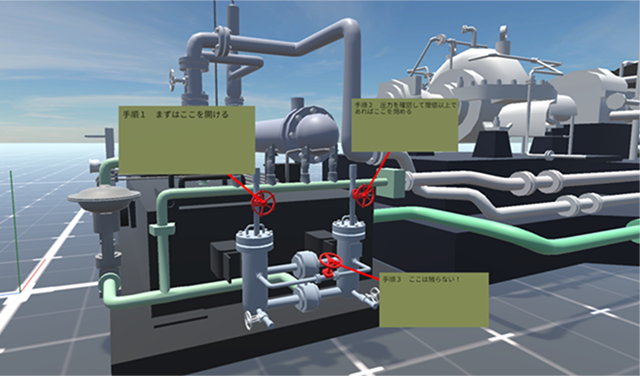
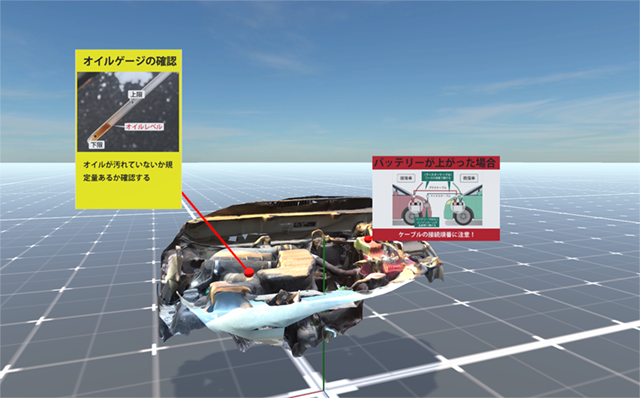
Step-by-step annotations on 3D data ensure precise and efficient communication of work procedures.
Education
Annotations on 3D scan or CAD data allow clear presentation, even without access to the physical equipment.
Workflow
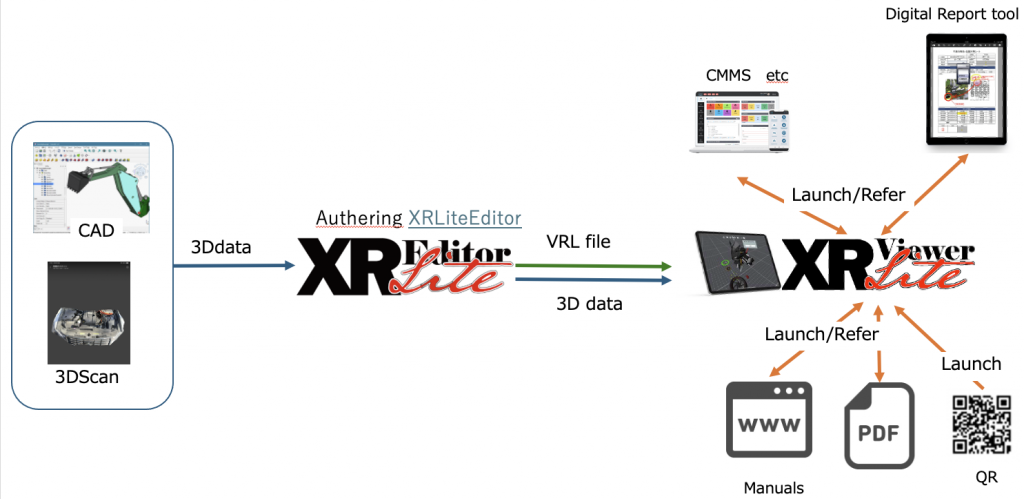
XRLite Editor imports 3D CAD data or 3D-scan data, lets you create scenes by editing object movement, color changes, camera positions (viewpoints), and annotations, and then saves those scenes together as a project.
The saved project (*.VRL file) can be loaded and run in XRLite Viewer.
Write your HTML as shown below. When this page is opened in the iPad’s browser and the link is tapped, XRLite Viewer launches and displays the specified VRL and specified scene.
This link launches Demo.vrl located in the iPad Files app under XRLiteViewer → Sample.
You can also convert a deep link like xrlite://open?file=FolderName/YourProject.vrl&scene=2 into a QR code. When the QR code is scanned with the iPad’s Camera, XRLiteViewer opens and displays the specified VRL and the specified scene.
Tip: If your folder or file names contain spaces or non-ASCII characters, URL-encode them (e.g., My Project.vrl → My%20Project.vrl).
Feature
Annotations
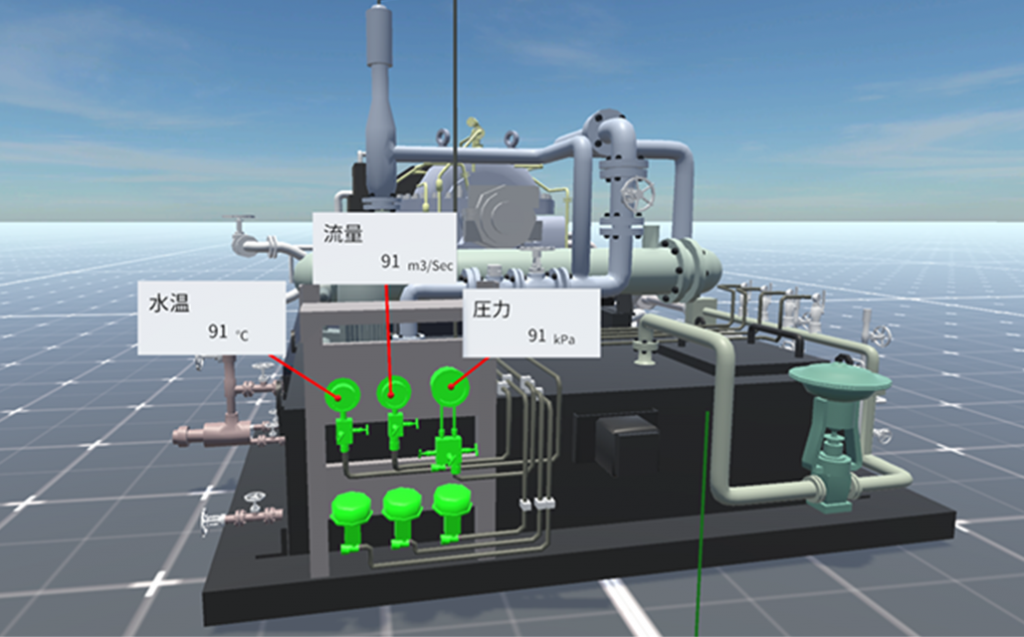
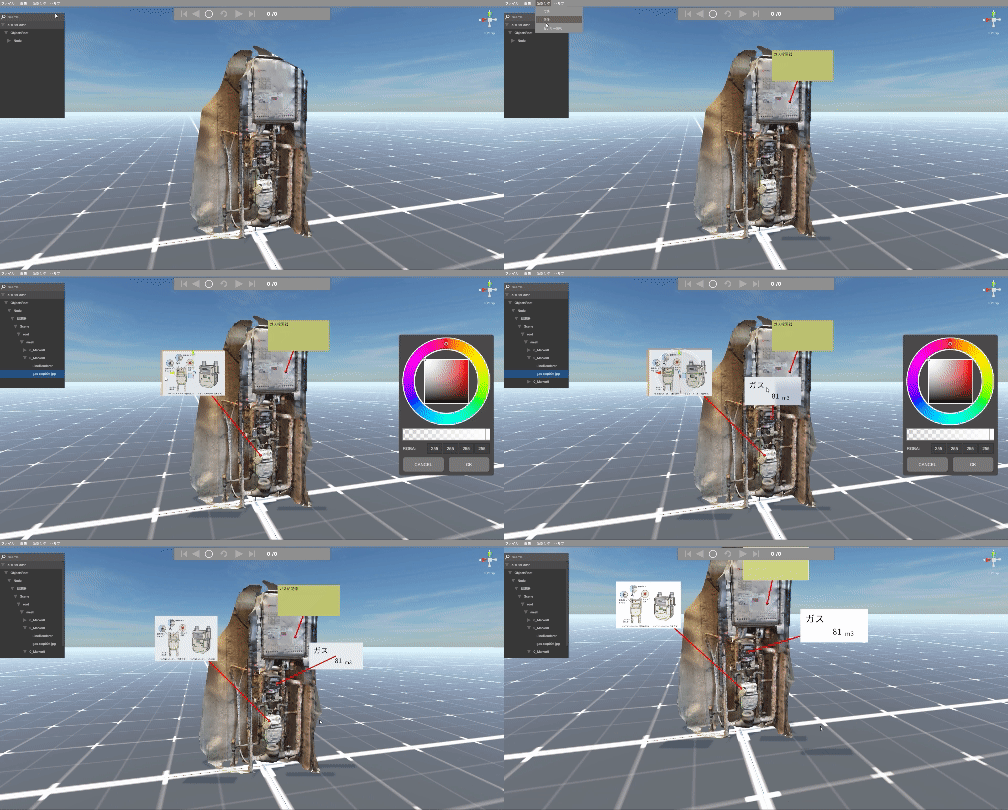
With XRLite, annotations can display text, images, IoT data, and links.
You can open PDFs and web pages, as well as launch browser-based e-forms or PLM systems directly from XRLite. This supports workers in avoiding troublesome tasks such as: “What are the components of this machine?” or “I’ve completed this inspection and want to record it in the form.”
In addition, if the app supports deep links, it can be launched directly without using a browser.
Note: For IoT data display, please contact us.
Color Adjustment
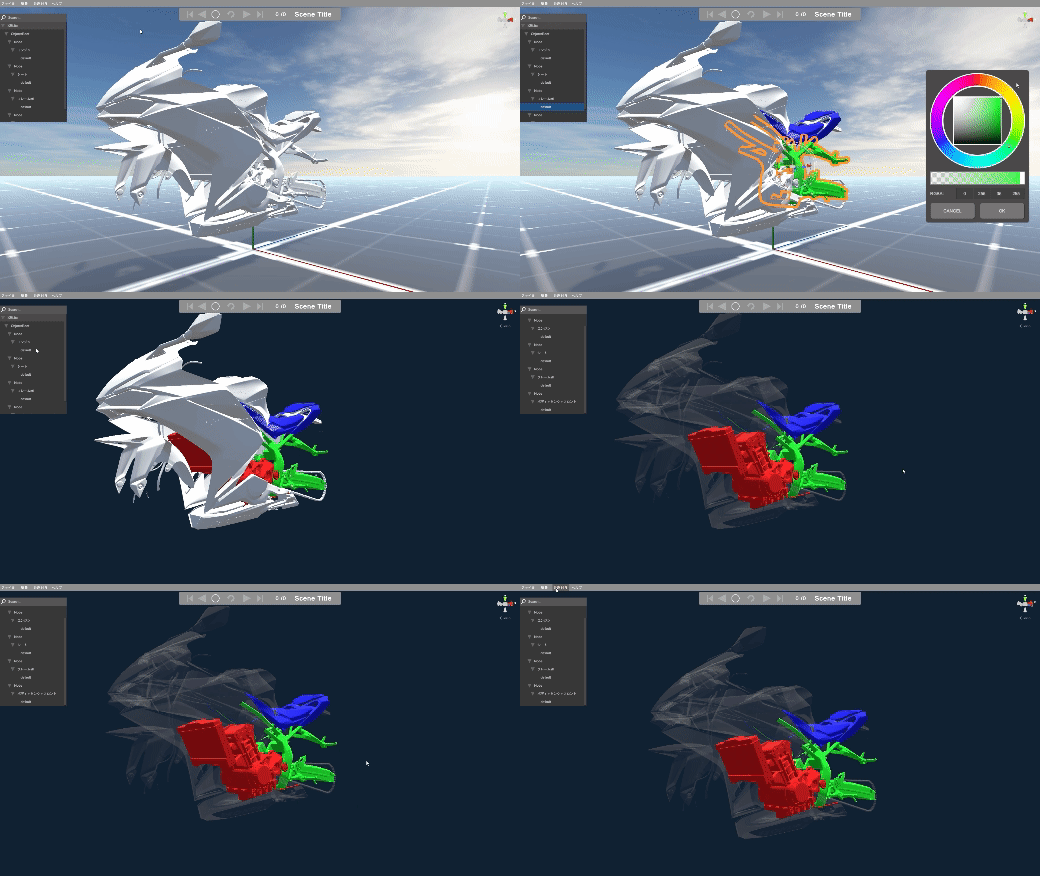
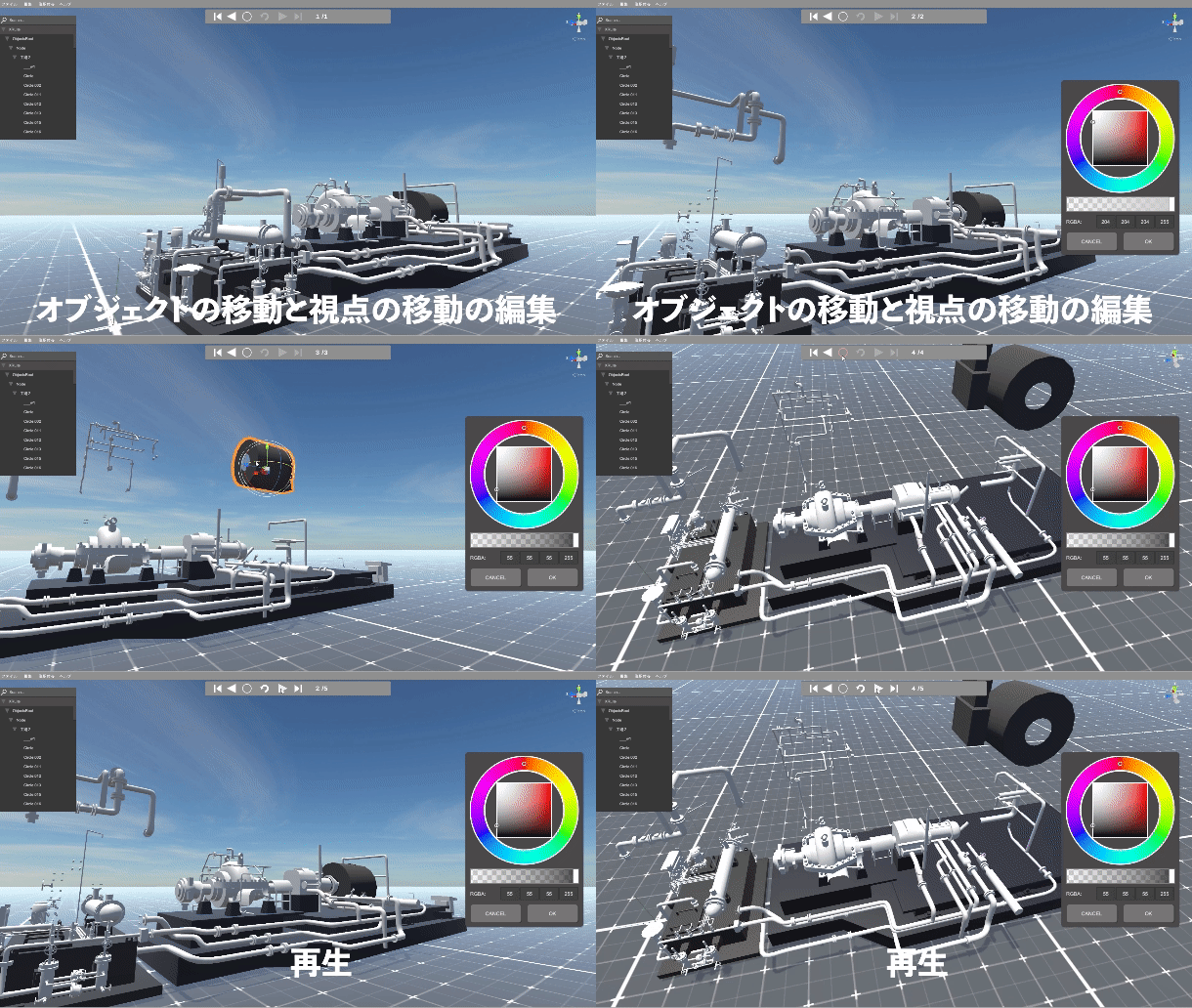
You can change the color of objects to highlight areas that require attention. Transparency is also supported, allowing you to display the machinery inside a cover.
While STL files generally do not contain color information, XRLite Editor enables you to assign colors freely.
Viewpoint and Object Movement
You can register specific viewpoints to guide users on what to look at and from where. With a single button, users can instantly move to the desired perspective.
You can also register object movements, enabling the creation of simple animations and interactive 3D manuals.
Specifications of XRLite Editor
Key Features
Import 3D data
Record geometric transformations (move/rotate) and color changes Note: Recorded transformation data cannot be used in other CAD applications.
Add annotations
Images, text, IoT data (via WebAPI)
Record and replay camera viewpoints
Edit, save, and replay projects with recorded transformations and annotations
Supported 3D Data Formats
FBX, OBJ, glTF2, STL, PLY, 3MF
3D scan data converted into the above formats is also supported
System Requirements
PC: Windows 10 / Windows 11 (64-bit)/ MacOS
For demo requests or pricing information, please contact us using the button below.